


Accept PayVector Payments on Your WooCommerce Website
Connect PayVector to your WooCommerce store in 5 minutes. PayLexer handles the setup, so you don't need custom development.
Set up in 5 Minutes
Just a few simple steps to get PayVector connected.
5-Star Support
Get help from real people whenever you need assistance.
Built for Non-Developers
No coding or complicated setup required.
How This Works
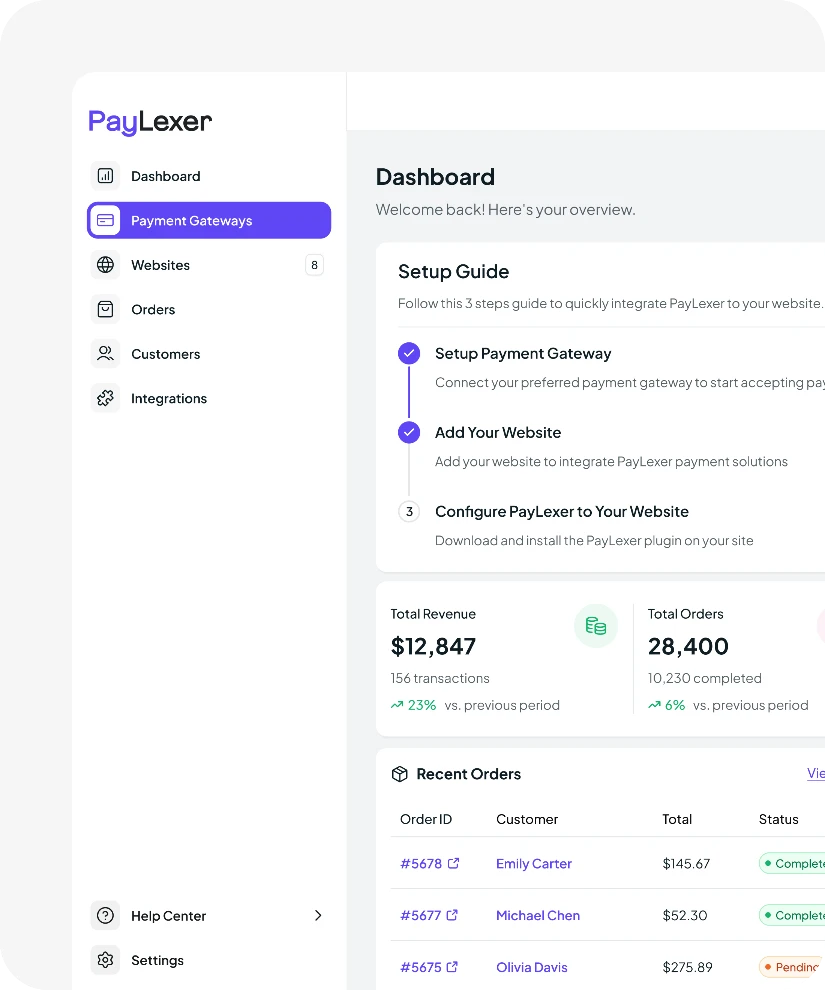
Integrate PayVector with WooCommerce in 5 Minutes
Here's what the setup actually looks like with PayLexer.
1
Get your credentials from PayVector
Log in to your PayVector account and go to your developer or API settings. Copy the credentials you find there; you will need them in the next step.
2
Connect PayVector inside PayLexer
Paste your PayVector credentials into PayLexer and verify the connection. Follow the remaining setup steps. PayLexer walks you through everything.
3
Install and activate PayLexer plugin
Install and activate the PayLexer plugin on your WordPress website. Enter your Client ID and Site Key to connect your website.
4
Enable PayVector
Test the connection in PayLexer. When it shows Connected, go to your WooCommerce payment settings and enable PayVector. You are ready to start accepting payments.
Other Payment Options
Prefer a Different Gateway? We Support More for WooCommerce
PayLexer supports 100+ payment gateways for WooCommerce. Pick the one that works best for your store and your customers.


No matching payment gateways found.
Try another keyword or view all supported gateways below.
Plugin Compatibility
Need PayVector on More Than One Website? Connect It to Every Platform You Sell On.
Your PayVector account works across every platform PayLexer supports. One account, connected everywhere you sell.


Trusted Solution
About WooCommerce
WooCommerce is the world’s most popular eCommerce plugin for WordPress. It gives businesses a flexible, open-source foundation to sell anything online, physical products, digital downloads, subscriptions, and more. With a massive ecosystem of themes, extensions, and integrations, WooCommerce adapts to any kind of store, at any scale.
0M+
Stores Powered
4.4 / 5
User Rating
0%
Market Share
Trusted Payment
About PayVector
PayVector is a payment provider focused on the United Kingdom, trading as Iridium Corporation. It supports e-commerce, telephone and mail order, mobile payments, virtual terminals, and fraud protection. It processes payments across five currencies including GBP, EUR, and USD.
0
Founded
0+
Merchants
2B+ £
Annual Transaction Volume (2016)
Ready to accept PayVector payments on WooCommerce?
Create your free PayLexer account and connect PayVector to your WooCommerce website today.
Set Up Now